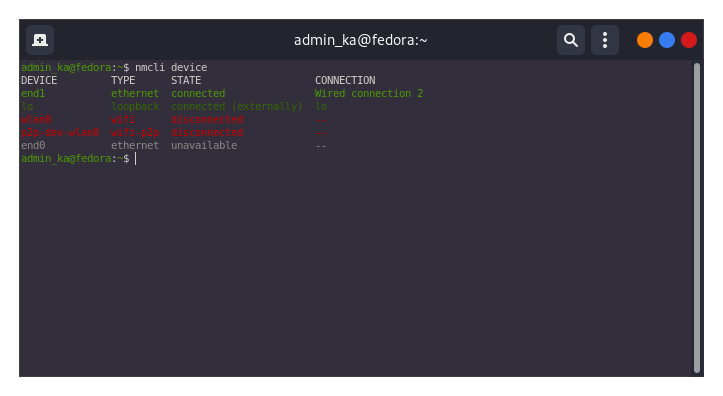
I’m only seeing a single Ethernet interface (end0)
The system crashes really easily while trying to do a docker build. When it crashes, the screen goes solid RED; it crashes while running apt for a Ubuntu 22.04 riscv64 container that I was going to use for testing
Another issue that I think I have resolved (although it could also be related to #2)
I had to the performance profile to stop the tuned utility/service from spamming my dmesg logs with details about changing the mmc clock with every CPU frequency change (I set it to hpc-performance mode)
Further details:
I am running the Fedora 42 Workstation image (dated 2025/09/25) from Fedora V Force installed to an NVME drive.
The questions:
Do I need to do anything to enable the second Ethernet interface or do I have a defective board?
The crashing to a red screen, I have no idea how to debug this one, seems weird to me… Does anyone have any ideas on it?
I did try putting Biandu on a uSD card and running that; and it does properly recognize all the network interfaces and doesn’t crash when I run the docker build for the container file I was initially trying to build.
One other thing I have noticed, is that it seems when I shutdown the board, it doesn’t instruct the power supply to turn off the peripherals as my molex case fans keep spinning. Which I’m assuming is related to this: PCIe slot powered even when Jupiter is powered off (has anyone else encountered this/is there a solution or is it just something we have to live with on these early boards?).
Apparently, you don’t have Network Manager installed. Install it. And if the file isn’t created automatically, create it manually. I’ve already shown you the file’s contents.
Yes, my power supply also continues to run after shutting down the operating system. The indicator on the front panel indicates that the system is off. This has also puzzled me, but I haven’t looked into it yet. For now, it’s a secondary concern.
aaron@fedora:\~$ systemctl status NetworkManager --no-pager --full
● NetworkManager.service - Network Manager
Loaded: loaded (/usr/lib/systemd/system/NetworkManager.service; enabled; preset: enabled)
Drop-In: /usr/lib/systemd/system/service.d
└─10-timeout-abort.conf
Active: active (running) since Sun 2026-02-01 16:13:31 EST; 4min 4s ago
Invocation: 4d83f70012724aafb94591a2805f5d56
Docs: man:NetworkManager(8)
Main PID: 1023 (NetworkManager)
Tasks: 4 (limit: 18616)
Memory: 7.9M (peak: 9.1M)
CPU: 1.520s
CGroup: /system.slice/NetworkManager.service
└─1023 /usr/bin/NetworkManager --no-daemon

Feb 01 16:13:48 fedora NetworkManager\[1023\]:   \[1769980428.0233\] policy: set ‘Wired connection 1’ (end0) as default for IPv6 routing and DNS
Feb 01 16:13:48 fedora NetworkManager\[1023\]:   \[1769980428.0275\] dhcp6 (end0): state changed new lease, address=fdea:330:62cb::de2 2601:140:4100:d07::de2
Feb 01 16:13:49 fedora NetworkManager\[1023\]:   \[1769980429.9490\] device (end0): state change: ip-config → ip-check (reason ‘none’, managed-type: ‘full’)
Feb 01 16:13:49 fedora NetworkManager\[1023\]:   \[1769980429.9549\] device (end0): state change: ip-check → secondaries (reason ‘none’, managed-type: ‘full’)
Feb 01 16:13:49 fedora NetworkManager\[1023\]:   \[1769980429.9556\] device (end0): state change: secondaries → activated (reason ‘none’, managed-type: ‘full’)
Feb 01 16:13:49 fedora NetworkManager\[1023\]:   \[1769980429.9580\] device (end0): Activation: successful, device activated.
Feb 01 16:13:49 fedora NetworkManager\[1023\]:   \[1769980429.9601\] manager: startup complete
Feb 01 16:13:52 fedora NetworkManager\[1023\]:   \[1769980432.9823\] dhcp4 (end0): state changed new lease, address=192.168.128.228, acd pending
Feb 01 16:13:53 fedora NetworkManager\[1023\]:   \[1769980433.1330\] dhcp4 (end0): state changed new lease, address=192.168.128.228
Feb 01 16:13:56 fedora NetworkManager\[1023\]:   \[1769980436.0301\] policy: set ‘Wired connection 1’ (end0) as default for IPv4 routing and DNS
I created the mentioned network manager config (which also required creating the netplan folder (would this indicate that something is incorrect with the Fedora build?):
This is good. Yes, one network interface is up. Loading modules has nothing to do with it. If one interface is working, then the other one should work just as well. But something is preventing it from setting the necessary settings.
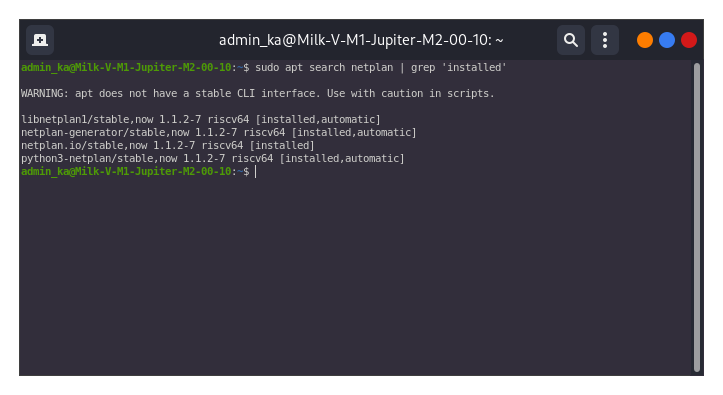
Can you check if the netplan package is installed on your system?
If I’m not mistaken, it should be something like: $ sudo dnf list installed netplan
I have these packages installed on Debian. And both interfaces work.
It was missing the netplan package, after adding it and rebooting I’m still only seeing the single ethernet interface.
I did notice that the Fedora image seems to be referencing both F41 and F42 packages:
aaron@fedora:~$ sudo dnf install netplan netplan-libs netplan-default-backend-NetworkManager
Updating and loading repositories:
Repositories loaded.
Package "netplan-0.105-9.fc41.riscv64" is already installed.
Package "netplan-libs-0.105-9.fc41.riscv64" is already installed.
Package "netplan-default-backend-NetworkManager-0.105-9.fc41.noarch" is already installed.
One of the Fedora 41 packages
aaron@fedora:~$ dnf info netplan
Updating and loading repositories:
Repositories loaded.
Installed packages
Name            : netplan
Epoch           : 0
Version         : 0.105
Release         : 9.fc41
Architecture    : riscv64
Installed size  : 379.8 KiB
Source          : netplan-0.105-9.fc41.src.rpm
From repository : fedora-riscv-koji
Summary         : Network configuration tool using YAML
URL             : http://netplan.io/
License         : GPL-3.0-only
Description     : netplan reads network configuration from /etc/netplan/*.yaml which are written by administrators,
                : installers, cloud image instantiations, or other OS deployments. During early boot, it generates
                : backend specific configuration files in /run to hand off control of devices to a particular
                : networking daemon.
                :
                : Currently supported backends are NetworkManager and systemd-networkd.
Vendor          : Koji
And a Fedora 42 package:
aaron@fedora:~$ dnf info vim-enhanced
Updating and loading repositories:
Repositories loaded.
Installed packages
Name            : vim-enhanced
Epoch           : 2
Version         : 9.1.1552
Release         : 1.fc42
Architecture    : riscv64
Installed size  : 4.0 MiB
Source          : vim-9.1.1552-1.fc42.src.rpm
From repository : fedora-riscv-koji
Summary         : A version of the VIM editor which includes recent enhancements
URL             : http://www.vim.org/
License         : Vim AND LGPL-2.1-or-later AND MIT AND GPL-1.0-only AND (GPL-2.0-only OR Vim) AND Apache-2.0 AND BSD-2-Claus
                : e AND BSD-3-Clause AND GPL-2.0-or-later AND GPL-3.0-or-later AND OPUBL-1.0 AND Apache-2.0 WITH Swift-except
                : ion
Description     : VIM (VIsual editor iMproved) is an updated and improved version of the
                : vi editor.  Vi was the first real screen-based editor for UNIX, and is
                : still very popular.  VIM improves on vi by adding new features:
                : multiple windows, multi-level undo, block highlighting and more.  The
                : vim-enhanced package contains a version of VIM with extra, recently
                : introduced features like Python and Perl interpreters.
                :
                : Install the vim-enhanced package if you'd like to use a version of the
                : VIM editor which includes recently added enhancements like
                : interpreters for the Python and Perl scripting languages.  You'll also
                : need to install the vim-common package.
Vendor          : Koji
Delete the screenshots; there’s no need to show MAC addresses. I was just wondering if there was a record of the second interface. Yes, it doesn’t seem to exist.
You can also check: nmcli device show
This will show the presence of all network devices.
Ya, in Fedora, I can only use wifi for whatever reason.
I’ll make a cleaned up version here:
Output of ip a:
aaron@fedora:~$ ip a
1: lo: <LOOPBACK,UP,LOWER_UP> mtu 65536 qdisc noqueue state UNKNOWN group default qlen 1000
    link/loopback 00:00:00:00:00:00 brd 00:00:00:00:00:00
    inet 127.0.0.1/8 scope host lo
       valid_lft forever preferred_lft forever
2: end0: <BROADCAST,MULTICAST,UP,LOWER_UP> mtu 1500 qdisc fq_codel state UP group default qlen 1000
    link/ether <removed MAC> brd ff:ff:ff:ff:ff:ff
    altname enx3ae60ed175ee
3: wlan0: <BROADCAST,MULTICAST,UP,LOWER_UP> mtu 1500 qdisc mq state UP group default qlen 1000
    link/ether <removed MAC> brd ff:ff:ff:ff:ff:ff permaddr <removed MAC>
    altname wlx111111111114
    inet 192.168.1.153/24 brd 192.168.128.255 scope global dynamic noprefixroute wlan0
       valid_lft 42952sec preferred_lft 42952sec
Output of nmcli:
aaron@fedora:~$ nmcli
wlan0: connected to HomeWifi
        "wlan0"
        wifi (rtl8852bs), <removed MAC>, hw, mtu 1500
        ip4 default, ip6 default
        inet4 192.168.1.153/24
        route4 192.168.1.0/24 metric 600
        route4 default via 192.168.1.1 metric 600

lo: connected (externally) to lo
        "lo"
        loopback (unknown), 00:00:00:00:00:00, sw, mtu 65536
        inet4 127.0.0.1/8

end0: disconnected
        "end0"
        ethernet (k1x_emac), <removed MAC>, hw, mtu 1500

p2p-dev-wlan0: disconnected
        "p2p-dev-wlan0"
        wifi-p2p, hw

DNS configuration:
        servers: 192.168.1.1
        domains: lan
        interface: wlan0

        servers: ::1
        interface: wlan0

Use "nmcli device show" to get complete information about known devices and
"nmcli connection show" to get an overview on active connection profiles.

Consult nmcli(1) and nmcli-examples(7) manual pages for complete usage details.
No, the ip a output is not needed here. It shows whether interfaces are enabled, and our goal is to find the disabled one.
It’s strange, for some reason the second interface is completely missing.
Delete the screenshots… again.
I’ll be gone for a bit. I want to check something. I’ll have to boot from the microSD card.
If you manage to figure out the problem during this time, let me know.
I made the redaction of the MAC addresses more obvious, I’ve been mangling them, but just straight up removed them in the latest post. I may poke around it a bit more; it’s fairly weird though. I don’t have much experience with working with Device Trees, but I almost wonder if the Fedora image might have an incorrect DTS loaded.
At least it is clear that the second connector is in good condition.
I haven’t tried installing via Fedora V Force. (*It turned out that the image I uploaded was the same Fedora V Force, it was dated September 27, 2025 at 9:30 PM.)
Perhaps something went wrong during installation, I don’t know, but this need to check somehow. Unfortunately, I don’t have a spare NVMe drive on hand right now, only a microSD.
To test the second connector, I suggest you power off the board and move the cable to the second connector. This will check if it works after the system boots up.